Desktop app
Use the holdmap desktop app: Home, maps, PNG snapshots and screen recording, with local saves and reviewed service stops on macOS, Windows and Linux.
A tray and menu-bar app with the port list, details, the service graph, the agents map, pins, history with
one-click restart, remote hosts over SSH and a command palette. It runs on the same core as the
CLI, so process identity checks and process protections are shared. The CLI’s project-specific
.holdmap.toml settings apply to CLI and terminal UI actions.
Try it in the browser.
Release-by-release changes are in What’s new and the changelog.
Home and first open
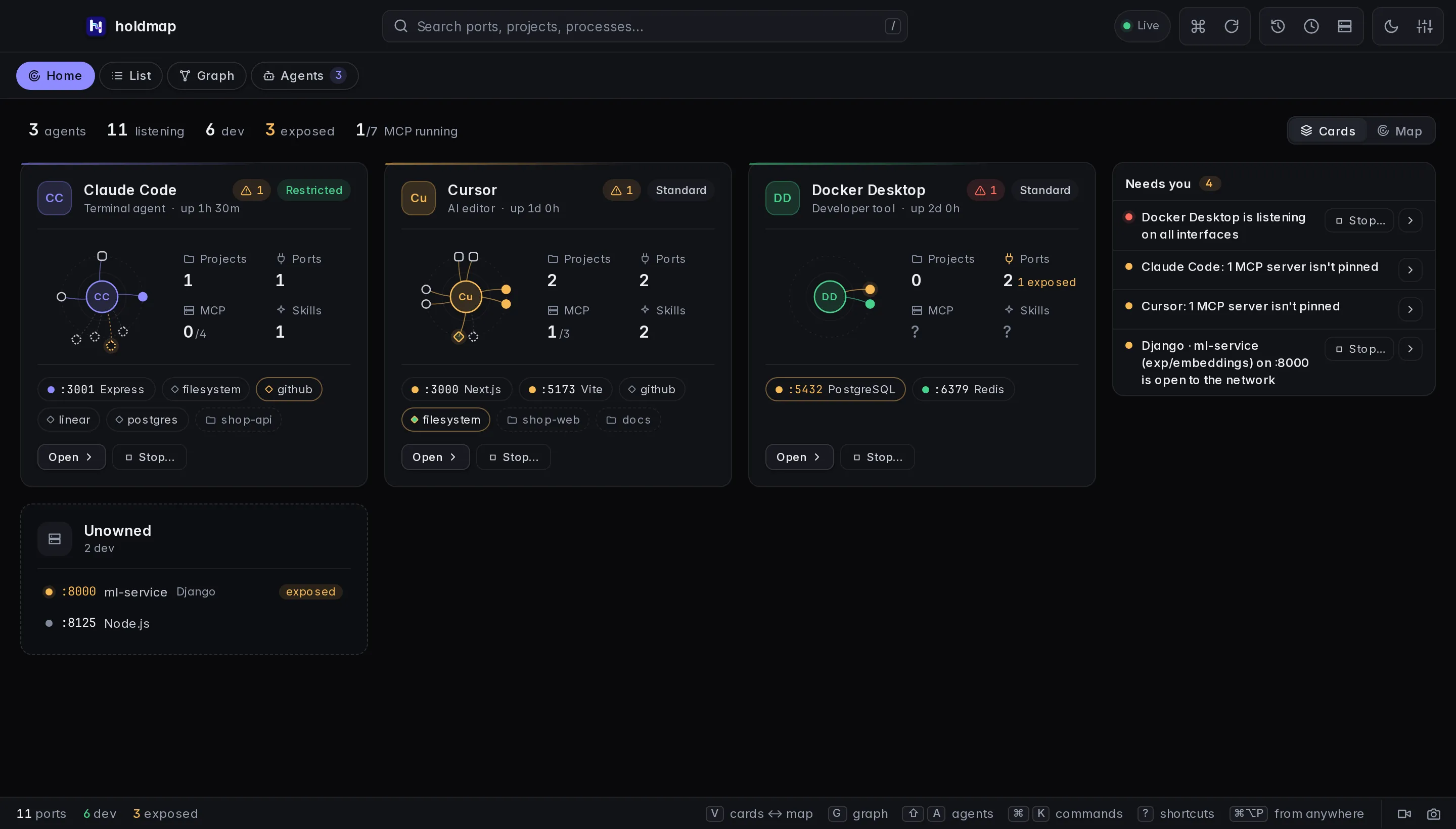
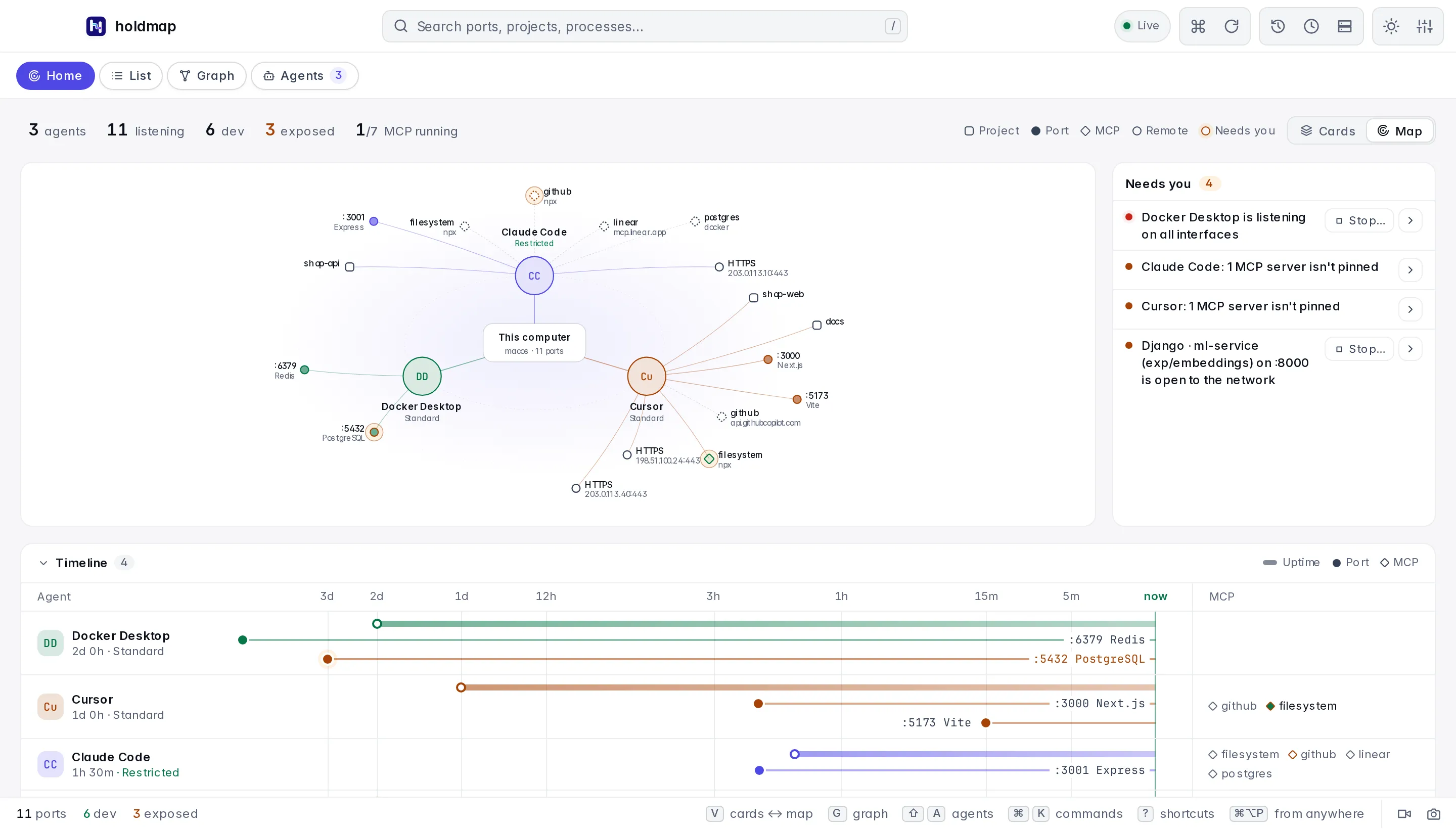
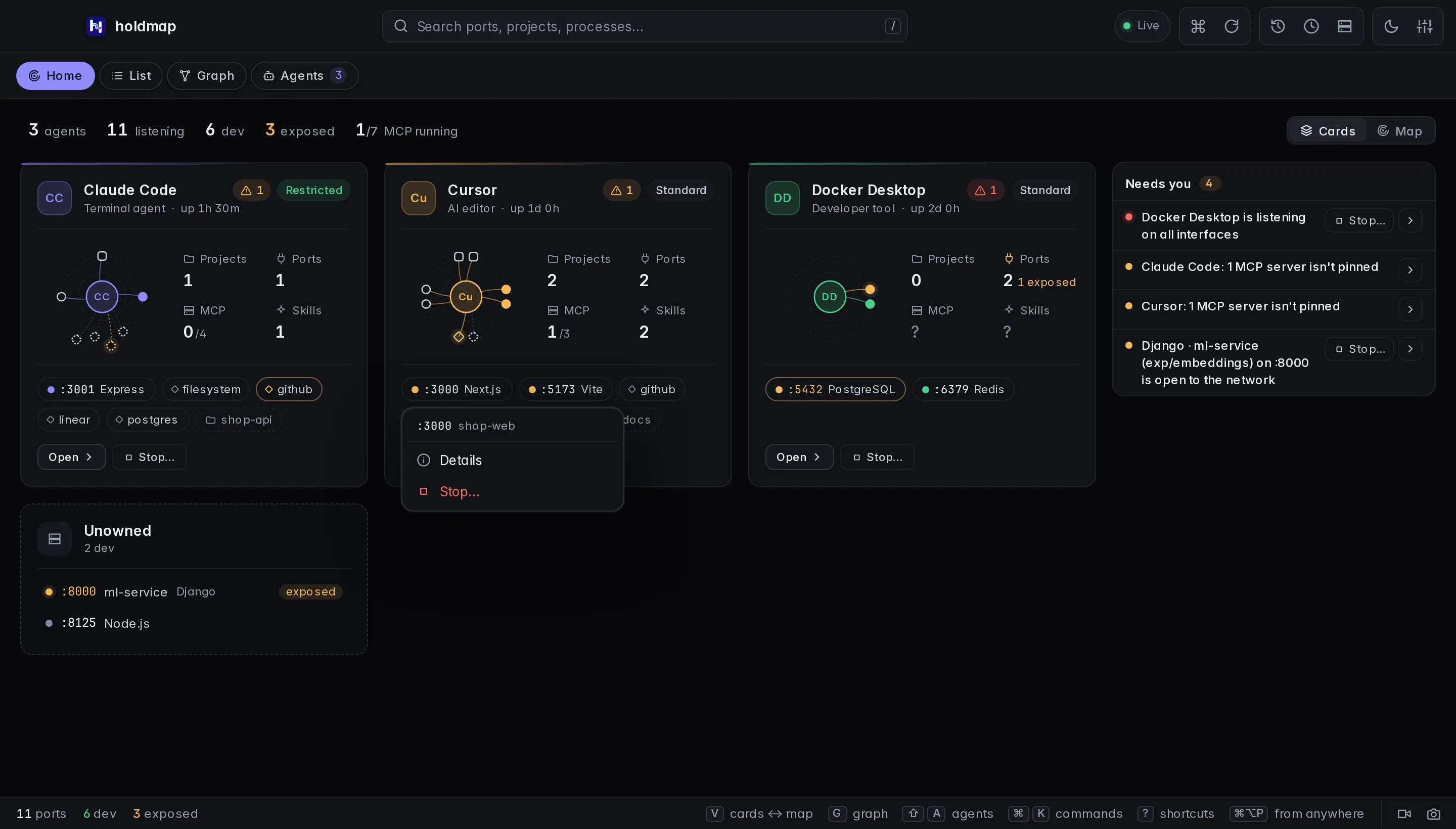
Home shows agents, listening ports, dev
servers, exposed listeners and running MCP servers, as Cards or a Map (toggle at the
top right or press V; the choice is remembered). Cards list each agent’s projects, ports,
MCP servers and skills; Map draws the same footprint around this computer with a collapsible
Timeline. Needs you lists agents on all interfaces, root or elevated access, risky
safety settings, unpinned MCP servers and exposed dev servers. Click any port (a card chip, a
map node or a timeline pin) for Details or Stop…; every Stop… opens the stop plan
first. Select an agent once to highlight it everywhere; select it again to open it on
Agents. Counts read … until the first scan. On a narrow window the Map becomes a list
of agents, each with its ports and the same Details / Stop… menu.
The first open asks where to start and shows notifications, launch at login and single-key shortcuts with their current settings. Skip changes nothing.
Close, reopen and quit
When the menu-bar or tray icon is available, closing the desktop window keeps Holdmap running, including active schedules and recording. Click the icon to reopen the window, or use your configured global shortcut. Choose Quit holdmap from the icon’s menu to exit completely. If the tray is unavailable, closing the window quits the app.
Closing from fullscreen returns to the previous app without leaving an empty black Space, and clicking the Dock icon reopens the same window.
Service graph and cluster grouping
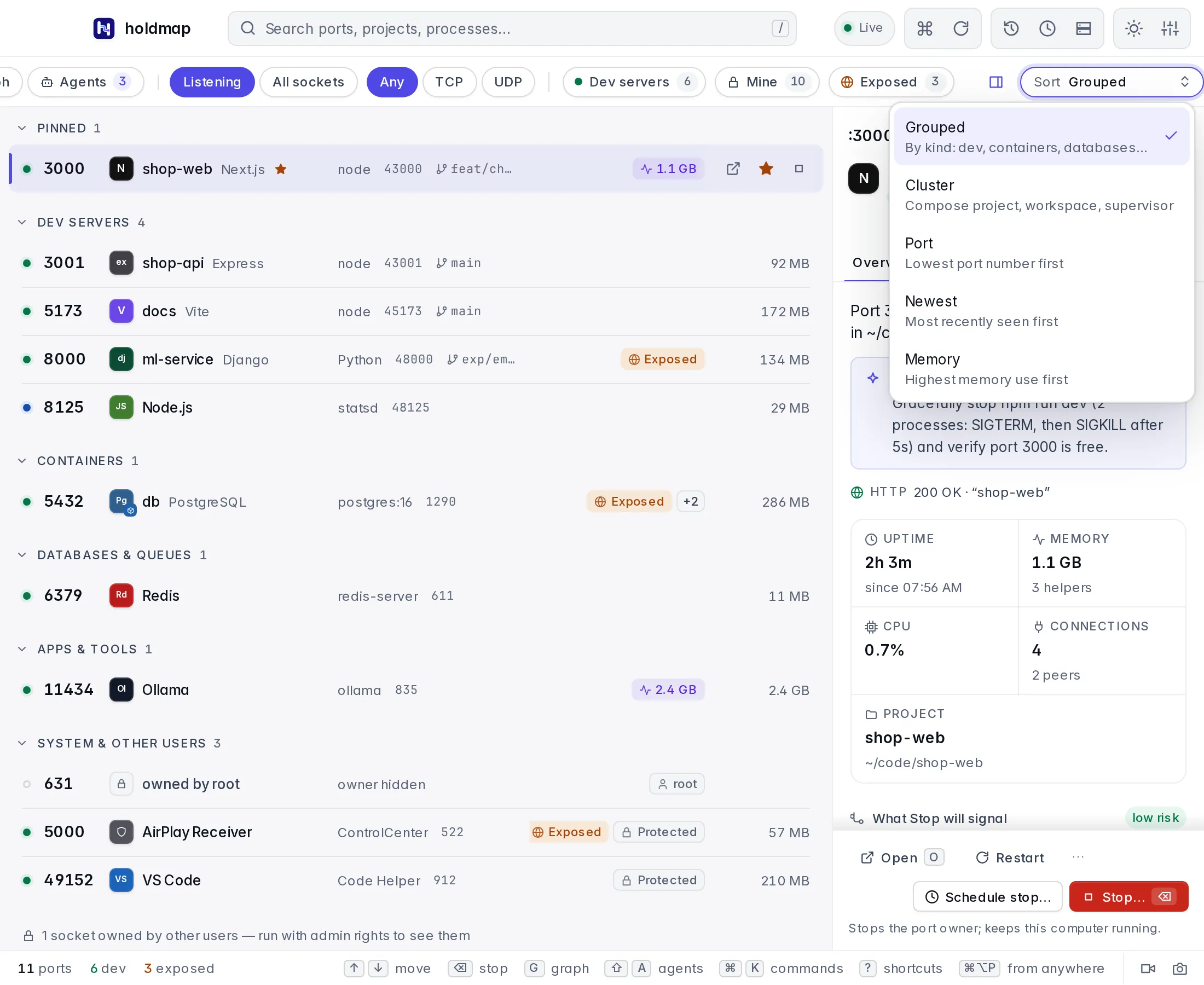
Choose Graph to see connections between services, or choose Cluster in the list’s sort menu to group ports by their Compose project or workspace. Both views refresh as services change. Layered arranges dependencies from left to right. Force groups tightly connected services and is available for up to 100 services; larger graphs use Layered to keep navigation responsive, including when Force was previously selected.
The graph starts with your dev servers and anything they talk to. All services adds databases, apps and other services on this computer. Editor-extension listeners keep the extension name, not the inherited project — the same identity as the list and Agents view. A card’s location is a layout choice; only the displayed links represent observed connections.
The graph opens with the full canvas and compact service and link counts. Disconnected services and separate clusters are packed into compact groups in both layouts.
The new Search services field searches displayed names, projects, ports and PIDs.
Use port:3000 or :3000 for an exact port, and pid:43000 for an exact PID. Multiple
terms must all match. Results include each match’s immediate observed neighbors, so a
service’s connections keep their context; neighbors are not additional search matches.
Graph search is separate from the List’s search, protocol, ownership and dev-server
filters. Searching never reads process command lines or creates links.
The canvas starts at a readable size. Pan or zoom to explore larger graphs; Fit all services in view deliberately zooms out to the whole map, and the percentage control, Reset to readable size, restores a readable view. On wider canvases, a minimap appears when part of the graph is outside the viewport.
Click a service card, or focus it and press Enter or Space, to inspect that service. Details appear beside the canvas when there is enough room, or in a dismissible drawer in smaller windows. Close or hide details, or press Esc, to return to the full map and restore focus to the service card. The graph does not open a summary pane automatically.
Open Options for the secondary display controls. External shows outbound remote hosts and is unavailable when there are none. Press Esc to close Options and keep the selected service. Traffic animates observed connections; it stays off when reduced motion is enabled. Legend toggles the connection key while the compact counts stay visible. Disconnected services have no invented edges; a short message explains when no connections are present.
Record the screen
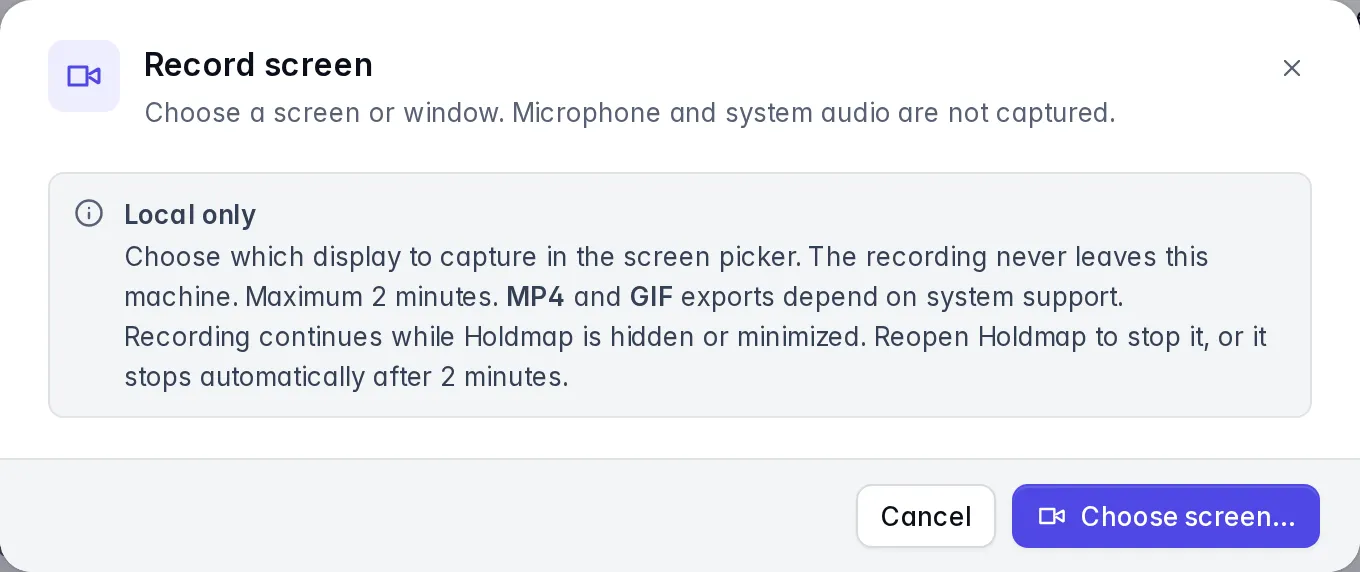
The video icon in the status bar,
Record screen… in the command palette, or ⇧V starts a local capture. Holdmap explains that recordings stay on this computer, then the
operating system asks which display or window to share. Microphone and system audio are
not captured. A timer in the title bar and Stop screen recording replace the dialog so
this window can be part of the capture.
Recording continues while Holdmap is hidden or minimized. Reopen the window to stop it;
the two-minute limit still applies.
When the recording stops (or after two minutes), preview and download MP4 and GIF.
The desktop app opens a native save dialog and reports the saved location after writing the
file. Cancelling the save dialog or a failed write keeps the recording available for retry.
The browser uses its own download manager. Close, Esc and clicking outside the preview
keep the latest recording for this session. Use the video icon, Review recording in the
command palette, or ⇧V to reopen it. Discard recording removes it and lets you record again.
Save a file before reloading or quitting; the preview is kept only in memory.
MP4 uses H.264 when an encoder is available. GIF uses a smaller picture and reduces its frame rate during longer recordings to cover the whole capture while keeping memory bounded. Exports are limited to 128 MiB per file; if a format cannot be encoded, the other available format can still be saved. Preparing files can be cancelled with Discard recording.
Nothing is uploaded. Each recording asks which screen or window to share. macOS may ask for Screen Recording permission in System Settings; if capture is blocked, allow this app or browser there and retry. Unsupported windows explain that capture is unavailable. This is separate from Agents → Flow recording, which collects optional tool-call metadata rather than pixels.
The macOS desktop app uses Apple’s native screen picker on macOS 14 or later when its window does not offer browser screen capture. Native capture encodes MP4 and GIF in a private temporary folder, then removes those files after copying the exports into the preview or discarding the recording, once pending native operations finish. The two-minute limit is enforced by the native app even while its window is hidden. Older macOS versions can record only when their webview provides screen sharing; otherwise use a supporting browser or the system screen recorder.
Linux desktop capture needs PipeWire and a working ScreenCast portal for your desktop environment. Its system picker still asks which screen or window to share each time. If that service is unavailable, try a browser with screen sharing or the system recorder.
Review local capture limits before choosing a screen or window:
Take a PNG snapshot
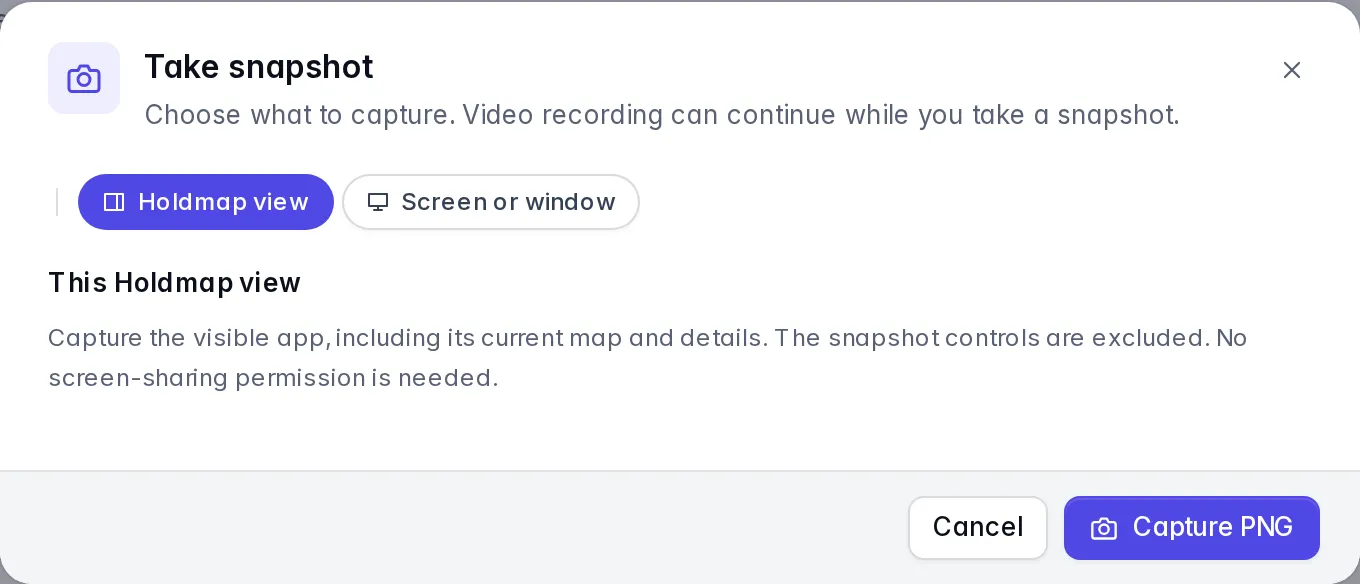
PNG snapshots are separate from video recording. Open the camera button, choose
Take snapshot… in the command palette, or press ⇧S with single-key shortcuts enabled.
- Holdmap view captures the visible app, its current map and details without screen-sharing permission. The snapshot chooser is excluded.
- Screen or window asks you to choose a source through the system picker. Sharing ends after the PNG is captured, and no audio is requested. Browser screen-sharing support and the platform requirements above apply; the native macOS fallback requires macOS 14 or later. An unsupported screen source does not disable Holdmap-view snapshots.
- During video recording, Recording source replaces the new-source choice. It takes a still from the existing source without another picker or stopping the video. The command palette also offers Snapshot recording source while that source is available.
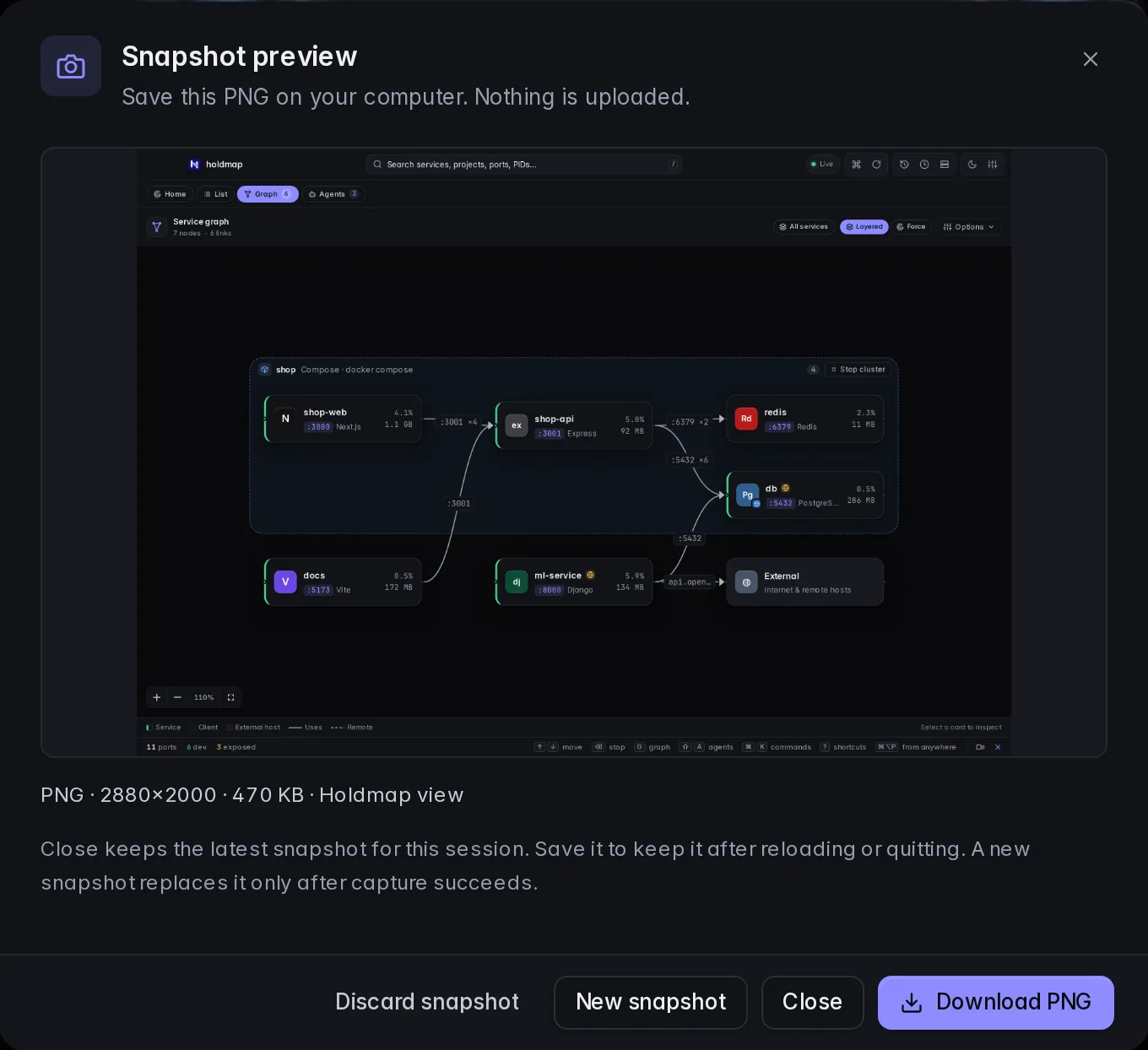
Review the PNG before saving. Images preserve their aspect ratio within 3840×2160 and 32 MiB. Download PNG opens a native save dialog in the desktop app; the browser starts a download without claiming the file was written. Nothing is uploaded.
Close, Esc or clicking outside keeps the latest PNG for this session. Reopen it with
the camera button, Review snapshot or ⇧S. Cancelled saves and write failures keep it
available to retry. New snapshot replaces it only after the new capture succeeds;
Discard snapshot removes the retained image without stopping a video. Reloading or
quitting clears the preview, so save it first to keep it.
These screenshots use browser sample data:
Shut down this computer
Open Settings → Power → Shut down now…, separately from Schedule shutdown…; its review has no timing controls. Check the computer name, save your work and acknowledge that all apps, agents and local services will stop. The confirmation expires after 60 seconds; it does not schedule shutdown. Cancel or Escape closes the review before submission. After submission, follow any OS permission prompts; closing the dialog does not cancel the request. If the OS cancels later, quit holdmap completely and reopen it before trying again.
macOS uses System Events and may ask for Automation permission. Windows requests shutdown without forced termination. Linux requires systemd 248 or newer with explicit inhibitor checks. OS policy or permissions may refuse the action. The browser demo only simulates shutdown and cannot power off a computer.
Schedule shutdown or a service stop
- For this computer, open Settings → Power → Schedule shutdown…, or start from the empty Scheduled actions dialog (clock control). The review is titled Schedule computer shutdown?. For a local port, use Schedule stop… in its details instead of Stop…, or pick a service from that empty dialog. For an agent’s services, open its card and choose Stop all or a service’s Stop.
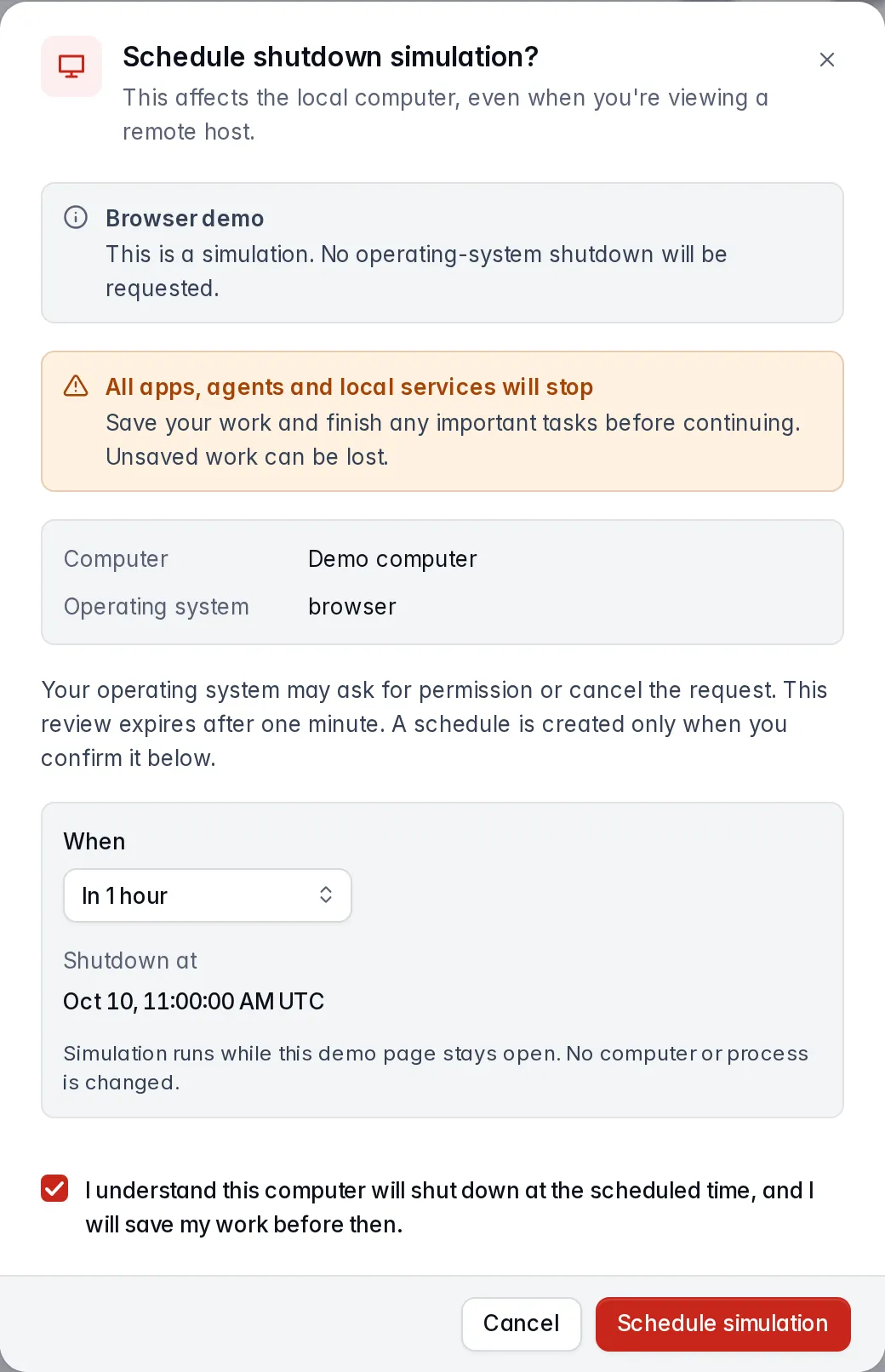
- Dedicated schedule reviews start at In 1 hour and exclude Now. Choose another preset, Custom delay, or At a time. Delays range from one minute to 24 hours. The preview shows the local date, time and timezone.
- Read the reviewed effects. For shutdown, acknowledge that all apps and unsaved work are affected, then choose Schedule shutdown. For services, choose Schedule stop.
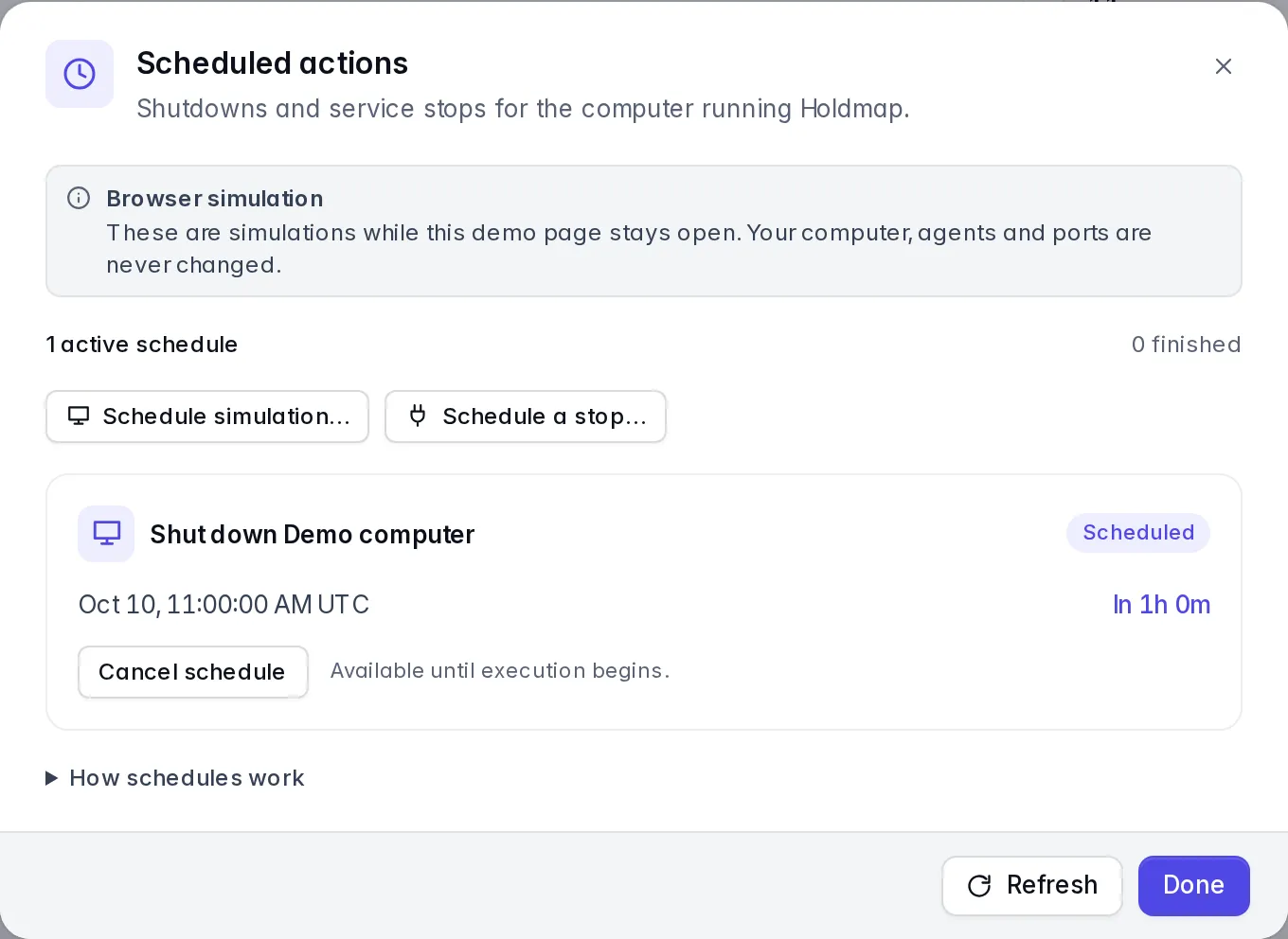
- Open the clock control, the active schedule banner, or Settings → Power → View scheduled actions to check the countdown and cancel. The empty Scheduled actions dialog can start a shutdown or a reviewed service stop. Cancellation succeeds only before execution starts; the UI waits for the backend’s acknowledgement.
Keep Holdmap running, including in its tray, and keep this computer awake. Completely quitting Holdmap or restarting the computer clears every schedule; the app does not wake the machine. A deadline missed by more than one minute, or a wall/monotonic clock discrepancy greater than 30 seconds, requires a fresh review. Jobs run once and never retry automatically.
The backend retains the reviewed services and process identities. If a process restarts, a port changes owner, agent ownership changes, or current protections block the action, Holdmap refuses the scheduled stop instead of targeting a replacement. An agent schedule stops its reviewed services and ports; it leaves the agent application running. Stop plans retain normal grace periods and any escalation displayed during review. Force-stop requests and protected process overrides cannot be scheduled.
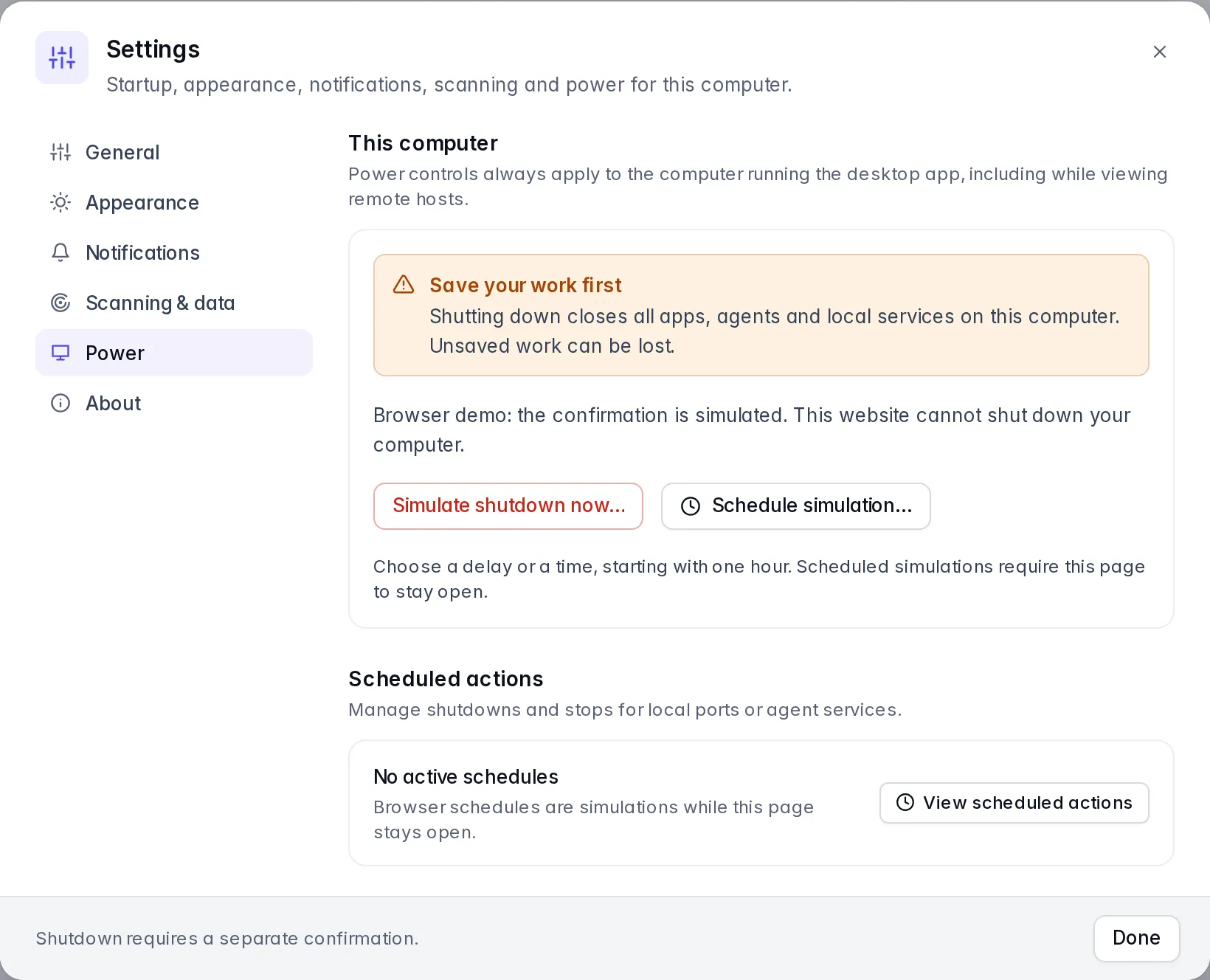
Power controls always target the local desktop computer, including when viewing remote hosts. Scheduling does not expose an SSH, CLI or MCP shutdown endpoint. Browser schedules simulate status changes only; they cannot shut down a machine or stop a process. Browser Power entries are Simulate shutdown now… and Schedule simulation…; the scheduled dialog is titled Schedule shutdown simulation?.
These current UI screenshots show the browser simulation:
First open
The published macOS app is ad-hoc signed and sealed, without Developer-ID signing or notarisation. Its Windows installers are unsigned. First verify the download using the checksums and build provenance linked from Install, then open it:
- macOS: if blocked, use System Settings › Privacy & Security › Open Anyway after trying to open the verified app. See Apple’s instructions.
- Windows: if offered, choose More info → Run anyway in SmartScreen. Organization policy or Smart App Control may block unsigned installers; see Microsoft’s Smart App Control FAQ.
- Linux:
chmod +xthe AppImage, or install the .deb or .rpm.
To update an existing desktop installation, download the latest installer that matches your operating system and architecture from Install. Releases without a configured signed updater require manual installation. Update the CLI by running its installer again.
Quit Holdmap before replacing it, then reopen the installed copy. Check Settings → About
in that app to confirm its version; holdmap --version checks the separate CLI. A copy
opened from a downloaded disk image or another folder can still be an older version.
About also shows the running app’s location and architecture, with desktop download and installation-guide actions. The command palette can open desktop downloads too. Follow the manual quit/install/reopen steps above for releases without a signed updater feed. Check the published release’s signing and updater notes before installing. Browser About identifies the web preview and omits desktop app locations.
Develop with local data
The browser development server reads live ports, agents, map relationships and Flow connections from a local Holdmap CLI. Follow the development setup for required toolchains and native packages. From the repository root:
cargo build -p holdmap
cd apps/desktop
npm ci
npm run dev
The development server uses target/debug/holdmap, then target/release/holdmap, then
holdmap on your PATH. Set HOLDMAP to use a different CLI executable. The live collector
is read-only: use npm run tauri dev from apps/desktop, or the installed desktop app, for
real process stops, restarts and operating-system actions.
Add ?demo=1 to the development URL for sample data. The public website demo and production
browser builds always use sample data; they do not scan or stop processes on your computer.
Screen sharing is separate and always requires your explicit screen or window selection.
Keyboard
⌘⌥P (Ctrl+Alt+P) brings the app up from anywhere; change it in Settings. Inside the app
(Ctrl instead of ⌘ on Windows and Linux):
| Keys | Action |
|---|---|
⌘K |
Command palette |
/ or ⌘F |
Search ports, projects and processes |
↑ ↓ or j k |
Move through the list |
Esc |
Clear the search, the filters or the selection |
⌫ |
Stop the selected port (⇧⌫ to force) |
o · c |
Open in the browser · copy its URL |
p |
Pin or unpin the port |
g |
Switch between the list and the service graph |
⇧A |
Agents, tools and apps: folders, ports they started, connections and access |
B |
Hide or show the details pane (list and graph) |
h |
Recently stopped, with one-click restart |
d · m · e · t |
Filter: dev servers · mine · exposed · TCP/UDP |
⌘R |
Rescan now |
⇧V |
Record the screen, stop capture or review the latest recording |
⇧S |
Take or review a PNG snapshot |
⇧L |
Cycle the theme |
⌘, |
Settings |
? |
Every shortcut |
Settings → General → Single-key shortcuts lets you disable
letter and symbol shortcuts, including / and j/k. Arrow navigation and ⌘/Ctrl shortcuts
remain available. This is useful with speech input or when you want to reserve letter keys.
Shortcuts respect text composition and native controls. Port-filter shortcuts apply only in List; Graph keeps its own search and selection. In Graph,
B acts on a selected listener’s details instead of opening a summary pane.
The command palette keeps its active result valid as running services change.
Agents map
Agents (⇧A) shows each AI coding agent and developer tool that is running (Claude Code,
Codex, Cursor, Copilot, Gemini CLI, Windsurf, Aider, Docker Desktop, OrbStack and others). Cards
skim memory, CPU, process count, stoppable ports and parent; expand for folders (with source
labels), ports and apps it started, child processes as tools & apps, connections, and access: the
account it runs as, sandbox and approval flags, network listeners, and macOS-protected folders.
Each fact is marked seen, inferred or unknown. From a card you can reveal a folder, open it in your
editor, or stop the unprotected ports that agent started. The map zooms
Computer → Footprint → Project from the same observed processes, sockets and folders; it does not invent communication
between agents. Recent projects come from folder names
only. Default scans do not inspect chats, agent settings or credential stores.
Explicit MCP & skills inspection separately parses
bounded configuration metadata and lists skill locations with optional sanitized YAML-header
names/purposes; it excludes credential values and skill instruction bodies from its results.
Recognized credentials in
observed process arguments are redacted for display; redaction is heuristic. Remote hosts show as IP addresses. Click a port to
open its details. ↑ ↓ switch agents. See Agents, tools and apps for the full guide.
holdmap agents and holdmap agents AGENT --stop-ports do the same in a terminal.
MCP & skills has Explore, Map and Compare views over the opt-in inventory. Explore leads with declared skill purposes; Map retains observed source relationships; Compare keeps exact definitions and their contexts separate. Matching process observations group without becoming a verified session. Select a card with a click, Enter or Space for Purpose, Source, Evidence and Activity. Close or press Esc to return focus without changing the selected context. Nothing is selected automatically. Tools explains Catalog not reported rather than showing zero tools. Filters and Coverage open on request, and narrow windows keep dismissible agent/details drawers. See the capability guide for supported locations and limits. File presence does not establish loading, approval or use; no new catalog or activity adapter is introduced.
In Flow → Calls, approved activity metadata can label a reported MCP server alias or explicit Claude skill activation. These labels are separate from configuration inventory; matching names do not prove use by a particular process. Set up optional recording to collect supported metadata.
You can also search by agent, child tool, folder, exact PID or
port:3000. Likely MCP server children appear even without a listening socket; expanded cards
show their evidence, resource use and redacted commands. Omitted counts and collection warnings
show where visibility is incomplete. The browser demo runs the current UI with sample data.
From the details pane
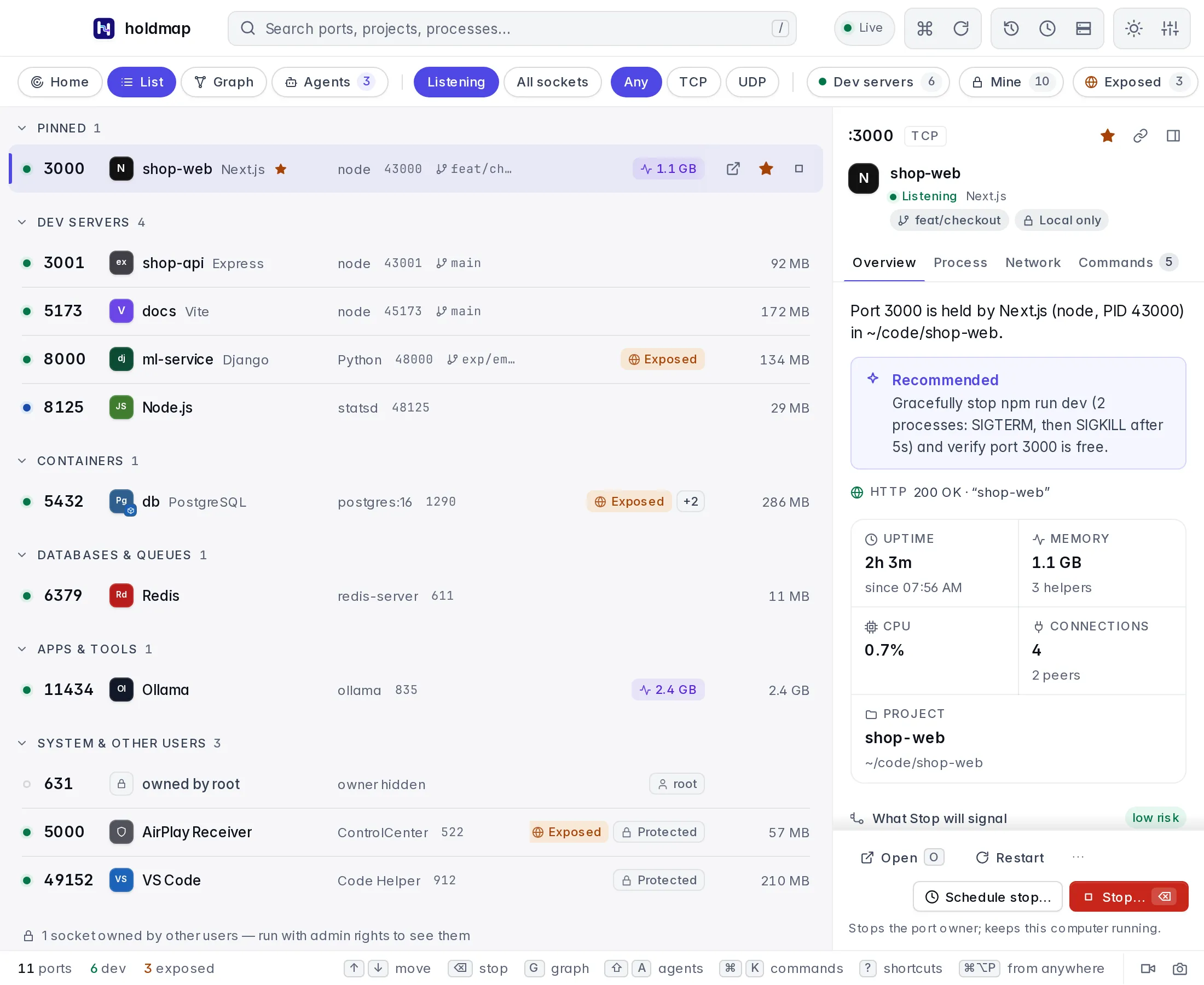
Open, Restart and More actions share one footer with Schedule stop… and Stop…. Stopping a port keeps the computer running. Tabs stay on one scrolling row; content remains readable in a 340-pixel pane. The Sort menu keeps its choices and descriptions within the right edge of the window.
Folder opening uses HOLDMAP_EDITOR, then a known installed editor. The file manager and URL, curl and command-copy actions remain available
through More actions.